Collaborating with Video Editors
When working on projects that combine audio and video, the audio engineer must ensure that high-resolution audio edits remain synchronized with the final assembled video. Several approaches exist:
No audio edits required – The simplest case. The video editor is free to select camera angles without concerns about audio sync.
Post-edited audio with playback – The promotional video is recorded after the audio has been edited, with musicians miming or playing along to playback via loudspeaker. The video editor has complete freedom to cut between angles without sync issues. This method isn't always feasible.
Minor edits in live-recorded video – When video and audio are recorded simultaneously and only minor edits are needed, the video editor can use a zoomed-out shot of the concert hall, a musician's face, or another visual to mask a slight time-stretch while preserving timecode accuracy.
Multiple synchronized takes – The most complex scenario. Both video and audio are recorded in multiple takes and synchronized via a timeclock. This is the focus of the following discussion.
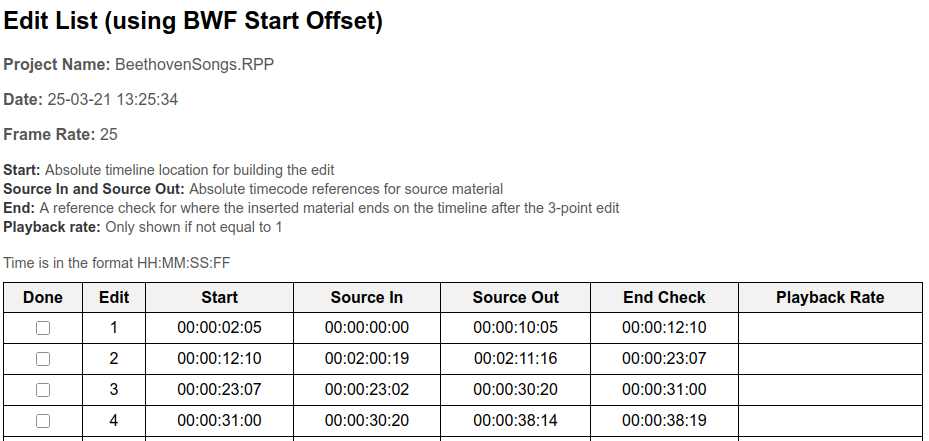
ReaClassical provides tools to generate an edit list for video editors. Rather than a file for direct import, this list serves as a manual reference. For all recordings, but especially those synchronized to a timeclock, REAPER/ReaClassical retains the timeline start position from the recording. This ensures that absolute in/out source positions can be retrieved even after extensive audio edits. To create an edit list:
- Perform source-destination edits as usual.
- Set the desired project framerate in the video tab of Project Settings via P.
- Export the edit list from the ReaClassical menu under Utilities, using the shortcut for the version you need:
- Build Edit List (using BWF Start Offset) (Alt+Shift+B) for timeclock-synced projects. It asks for an optional offset in frames, applied to every time in the list.
- Build Edit List (using source file timing) (Ctrl+Shift+B) to reference positions inside the source audio files. In this case, the audio engineer should provide a single channel of audio to help the video editor locate edit points, and the list also includes the source files used.
The edit list opens in your web browser as an HTML table with a Done column for tracking progress. When an offset is used, the page states it in red at the top, so the video editor knows the times have been shifted.