Project Setup
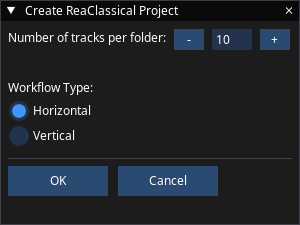
- Press Ctrl+N (Cmd+N on macOS)
- Select the number of tracks you want per folder
- Select a horizontal or vertical workflow
Notes
Track Count
A folder can contain as few as one track. Choosing a single track per folder is intended for a single stereo pair: ReaClassical still builds each folder with two tracks, but the second is kept as a hidden "spare" that can never record, so the folder structure stays consistent everywhere. Folder navigation and Mission Control skip the spare, and adding or deleting tracks later keeps it correctly hidden. Choose two or more tracks per folder for multi-microphone setups.
Workflow Choice
A horizontal workflow approach means that recorded or imported takes are arranged left-to-right in a single folder. A vertical workflow approach is designed for recorded takes of similar material to be stacked vertically.
Warning
You cannot make folders within folders in ReaClassical. Think of it like using a digital or analogue console. There are plenty of ways to control sets of tracks including routing through submixes via Mission Control.
Mission Control
As soon as you press OK, you will see the Mission Control window.
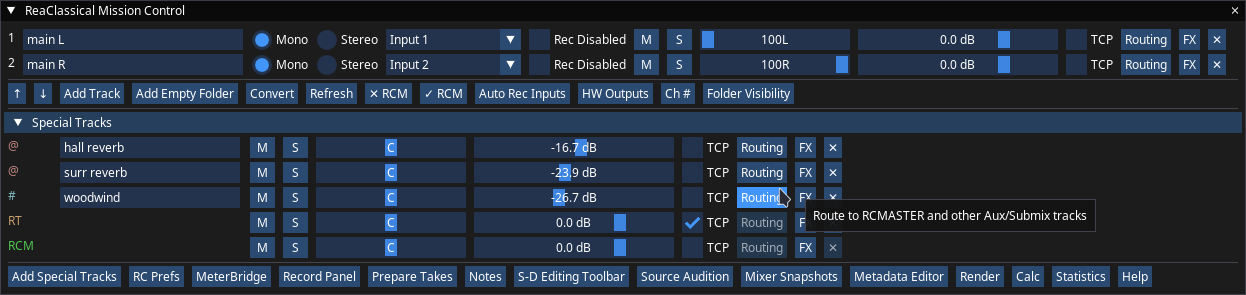
Use this dialog to:
- Name or rename tracks
- Set recording inputs manually or automatically based on track naming
- Temporarily disable recording of a channel
- Set routing
- Add "special" tracks such as aux, submix, room tone, live bounce, listenback and reference tracks
- Change visibility of folders and special tracks in the arrange window
- Add a track to all folders
- Delete a track from all folders
- Re-order tracks in all folders, and move aux and submix tracks up and down
- Convert between horizontal and vertical workflows
- Give mixer tracks direct connections to hardware outputs (if mixing using external gear)
Warning
Do not attempt to complete any of the above actions outside of Mission Control!
Additionally you can use Mission Control to optionally:
- Reach other important ReaClassical windows via a button click
- Add FX, set volume, panning, mute/solo
Screen reader users (Clara)
Create Project and Mission Control each have a keyboard-driven equivalent: Accessible Create Project and Accessible Track Setup. Both are announced through Clara. In Mission Control the "Toggle GUI Mode" action (Ctrl+Alt+Shift+G) switches between the accessible window and the standard ReaImGui window. See Using ReaClassical with a Screen Reader.