REAPER's Crossfade Editor
Screen reader users: use crossfade mode instead
If you use OSARA, you do not need this window. It is visual, and it is not fully accessible with a screen reader at the moment. ReaEdit's keyboard-driven crossfade mode gives OSARA users full parity with the visual editor in the features classical music engineers use, driven entirely from the keyboard: moving the crossfade and the audio inside it, widening and narrowing it, shaping the fades, listening to each side and putting it back as it was, with every step spoken. The same Crossfade Editor action starts it.
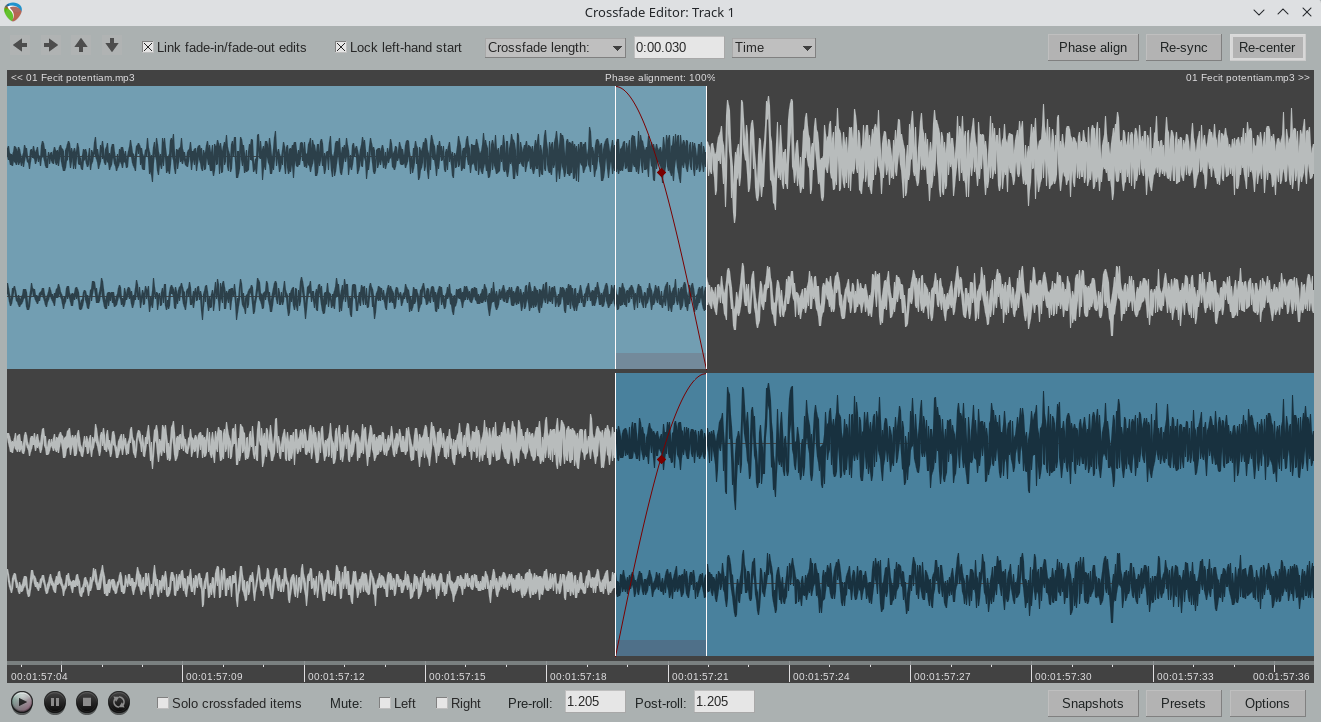
Since version 7.40, REAPER includes a professional two-lane crossfade editor, similar in spirit to the ones in the specialist classical editing systems. It is the natural next step after an S-D edit: ReaEdit puts a crossfade at each join, and the crossfade editor lets you listen to it closely and fine-tune where it falls. It is part of REAPER itself, so it is there whether or not you use ReaEdit.
Opening it
Select the right-hand item of the crossfade you want to look at, then run ReaEdit's Crossfade Editor action. To find it, open the Action List (Actions > Show action list...) and search for ReaEdit_Crossfade Editor. Bind a shortcut to it, since you will use it often: F is a good choice, and it is easy to reach with the other editing keys. Run the action again to close the window.
The action turns on ripple per track while the editor is open. If the selected item is not the right-hand item of a crossfade, it tells you so and does nothing. It needs REAPER 7.40 or later, the version that introduced the two-lane editor.
What you see
- Two lanes. The top lane shows the item on the left of the join (the one leaving the crossfade) and the bottom lane shows the item on the right (the one entering it).
- Ghost waveforms. Each item's audio carries on past the crossfade, shown dimmed, so you can see the material that is normally hidden. This is what makes it possible to line up transients by eye and place the crossfade just before one.
- The crossfade itself. The two white vertical lines mark where the crossfade starts and ends, and the red curves show the fade-out of the left item and the fade-in of the right item.
- Phase alignment. The percentage at the top of the window shows how well the two items currently match in phase.
- Item names and time. The names of the two items appear in the top corners, and a time ruler runs along the bottom.
The controls
The top row of the window holds the settings for the crossfade:
- Arrow buttons move around the crossfade and its neighbours
- Link fade-in/fade-out edits makes changes to one fade apply to the other
- Lock left-hand start keeps the start of the left-hand item where it is while you adjust the join
- Crossfade length sets the length of the crossfade (type a value, and choose the units from the list beside it)
- Phase align tries to line the two items up for the best phase match
- Re-center brings the crossfade back to the middle of the window after you have scrolled or zoomed
The bottom row is for listening:
- Play, pause, stop and loop audition the crossfade, with the Pre-roll and Post-roll boxes setting how much audio is played before and after it
- Solo crossfaded items plays only the items involved in the crossfade
- Mute Left and Mute Right silence one side so you can hear the other on its own
- Snapshots, Presets and Options store and recall settings and change how the editor behaves
You can also work directly in the two lanes with the mouse to move the crossfade and shape the curves.
Tip
Audition the left and right items on their own (with Mute Left and Mute Right) before you judge the crossfade. A problem you can hear in one item alone will not be cured by changing the crossfade length.
More detail
REAPER's own user guide describes every control and mouse gesture in the crossfade editor, including the phase alignment and view options that this page only mentions. ReaEdit does not add keyboard shortcuts to it; the window uses REAPER's own.